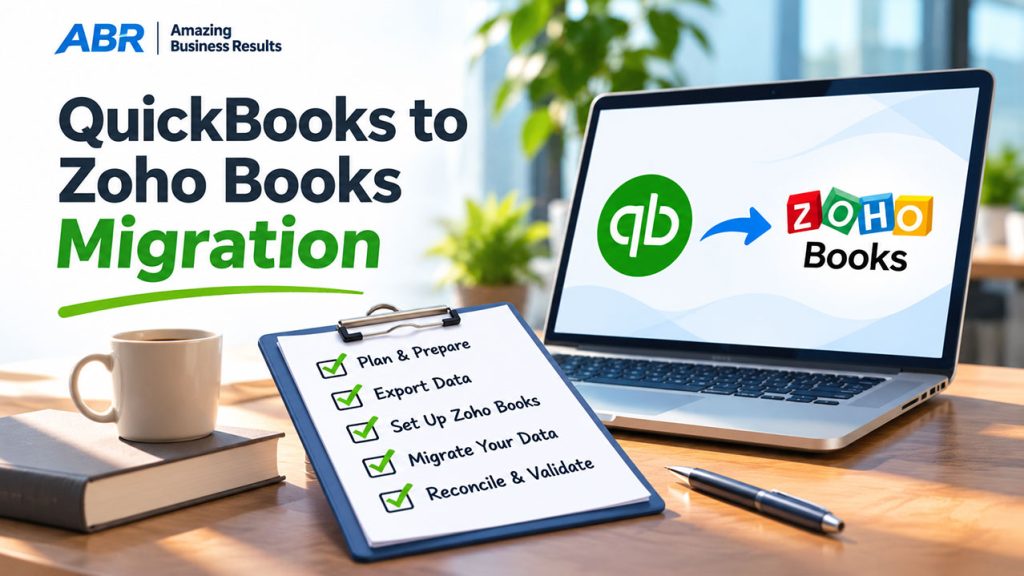
A QuickBooks to Zoho Books migration moves your chart of accounts, customer and vendor records, items, open invoices and bills, and your opening balances into a new Zoho Books organization, then proves that the numbers in the old and new system match before you switch over. For most small and mid-size businesses the work runs in phases over a few weeks. The biggest decisions come before any data moves: which date you switch on, and how much history you bring with you.
ABR went through this move itself: Lior Izik switched ABR’s own books from QuickBooks to Zoho Books with SFIR Consulting, the accounting firm that now runs our Zoho Books migration service. This guide walks through those decisions, the data migration process step by step, the checks that tell you it worked, and the US-specific items (sales tax and Form 1099) that are easy to miss.
Before You Start: Pick a Migration Date and a Method
The migration date is the day Zoho Books becomes your system of record. From that day, new transactions are entered only in Zoho Books. Older transactions stay in QuickBooks unless you also choose to copy history into Zoho Books, which is covered in step 6. The cleanest choice is the first day of a reporting period, ideally the start of your financial year or at least the start of a month, so that no period is split across two systems.
Next, decide how much data to move. There are two common approaches:
| Method | What moves | Good fit when | Trade-off |
|---|---|---|---|
| Opening balances | Chart of accounts, contacts, items, account balances as of the migration date, plus open invoices and open vendor bills | You start at a year or month boundary and keep QuickBooks available for older reports | Faster and cheaper, but older transactions live only in QuickBooks |
| Full history | Everything above, plus historical transaction data such as historical customer invoices, bills, payments and credit notes | You want all reporting, customer history and comparisons in one system | More data to clean, map and validate, so it takes longer |
A common middle option is opening balances at the start of the financial year plus that year’s transactions. That keeps year-to-date reports complete in Zoho Books without moving a decade of old data.
QuickBooks Online vs QuickBooks Desktop
The source system changes how the QuickBooks data comes out. QuickBooks Online lets you export lists and reports (accounts, customers, vendors, products and services, sales and purchase transactions) that Zoho Books can import. Zoho publishes a QuickBooks Online migration guide that lists which reports to export and how the fields map. Zoho also has a built-in QuickBooks Online migration tool, but whether it appears depends on your Zoho Books edition, so check your organization for a QuickBooks migration option or ask Zoho’s migration team. Without it, you work from exported files and import them into the new system.
QuickBooks Desktop data has to be exported to spreadsheets or reports first, and Desktop files often carry years of inactive accounts, duplicate records and old items. Plan extra time for cleaning a Desktop file before importing anything.
QuickBooks Export Checklist
Before importing anything, export these reports and lists from QuickBooks as of the migration date and keep them in one folder. They are both your import files and the targets you will check Zoho Books against.
| Export from QuickBooks | Used for |
|---|---|
| Trial Balance (as of your switch date) | Starting balances and the final check |
| Balance Sheet and Profit and Loss | Checking retained earnings and year-to-date figures |
| Account List (chart of accounts) | Mapping accounts and account types |
| Customer Contact List and Vendor Contact List | Importing contacts |
| Product/Service List | Importing items |
| A/R Aging Detail (unpaid invoices) | Customer balances, invoice by invoice |
| A/P Aging Detail (unpaid bills) | Vendor balances, bill by bill |
| Inventory Valuation Detail (if you track stock) | Opening quantities and values |
| Bank and credit card statements and the last reconciliation reports | Bank balances and the starting point for reconciliation |
| Sales tax liability report | Tax payable at cutover |
Zoho’s own QuickBooks Online migration guide lists the exact columns each import expects.
Data Migration Scope: What Moves from QuickBooks to Zoho Books
Before importing data, agree on the required data with whoever owns your financial data, usually the business owner and the outside accountant. A typical QuickBooks to Zoho Books migration covers:
- Chart of accounts, mapped to the matching account types in Zoho Books
- Customer and vendor records, including contact details, payment terms and tax settings, mapped to the corresponding fields in Zoho Books
- Items (products and services), and inventory items with quantities if you carry stock
- Opening balances for every account as of the migration date, including what each customer owes and what you owe each vendor
- Outstanding invoices and open vendor bills, so you can still collect and pay what is due
- Each bank account and card account, with balances that match your statements, plus recent bank transactions if you bring history
- Historical invoices, bills, payments, credit notes, sales orders and purchase orders, if you choose full history
Some things usually need to be set up again rather than imported: bank rules, recurring transaction schedules, custom report layouts, user permissions and connections to payment gateways and other apps. Payroll history is normally kept in the payroll system you use and not moved into the ledger line by line.
The QuickBooks to Zoho Books Migration Process, Step by Step
Step 1: Assess and clean your QuickBooks data
Run a trial balance, a balance sheet and accounts receivable and payable aging reports in QuickBooks Online or Desktop as of the migration date. These become your targets. Then clean the source: merge duplicates, make inactive accounts and items inactive, and fix open items that should have been closed. Every error you leave in QuickBooks will be copied into the new accounting software. Note any technical considerations at this stage too, such as multi-currency, classes or locations, and custom fields that need a home in Zoho Books.
Step 2: Set up the Zoho Books organization
Before importing data, configure the organization to match your business requirements: fiscal year, base currency, tax settings, invoice numbering, and the users who need access. If you have not set up Zoho Books before, our Zoho Books setup guide covers these settings, and Zoho Books pricing explains which plan includes the features you need.
Step 3: Map and import the chart of accounts
Mapping is where most of the thinking happens. Each QuickBooks account needs a corresponding account and account type in Zoho Books. This is also the right moment to simplify: a migration is a chance to retire accounts nobody uses and bring the structure in line with the financial reporting you need today.
Step 4: Import customers, vendors and items
Import contacts and items next, because transactions depend on them. Check on a sample that customer details, vendor records, payment terms and tax treatment came across correctly, with no duplicate contacts, before moving on.
Step 5: Enter opening balances, bank account and credit card accounts
Enter the balance of every asset, liability and equity account on the switch date, including every bank and card account, using the trial balance from step 1. Accounts receivable and accounts payable are the exception: their totals come from the customer and vendor amounts you bring in below, not from a separate lump-sum entry, so they are never entered twice.
Customer and vendor balances need extra care, because there are two ways to bring them in and you must use only one for each amount:
- Invoice by invoice (recommended). Import each unpaid invoice and bill with its original date and due date, dated before your opening balance date. Your aging reports stay accurate and you can record payments against the real documents. Zoho Books then uses its Sync option in Opening Balances to adjust the balances for transactions dated before that date.
- One total per contact. Enter a single outstanding amount for each customer and vendor. It is faster, but you lose the invoice-level detail.
Example: importing unpaid bills into Zoho Books. Open Purchases, then Bills, open the More menu and choose Import Bills. Upload your prepared file (built from the QuickBooks A/P Aging Detail), map the required fields such as vendor name, bill number, bill date, due date, account and amount, review the preview, and confirm. Then compare the imported total with the QuickBooks A/P aging report. Unpaid invoices follow the same pattern under Sales, then Invoices. Menu names can differ slightly between Zoho Books editions.
Zoho Books treats a contact’s outstanding opening balance as the amount owed excluding invoices and bills recorded in Zoho Books. So if you import the unpaid invoices, do not also enter the same amount as a contact balance; doing both doubles your receivables or payables. Zoho explains this in its help page on starting balances.
Example. QuickBooks shows $12,000 in accounts receivable at cutover, made up of two unpaid customer invoices:
| QuickBooks source | Amount |
|---|---|
| Unpaid customer invoice A | $7,000 |
| Unpaid customer invoice B | $5,000 |
| Total accounts receivable | $12,000 |
| Required Zoho Books receivable total | $12,000 |
Import both invoices and Zoho Books shows $12,000, invoice by invoice. If the same $12,000 were also entered as an opening balance, receivables would show $24,000. Payables work the same way with unpaid bills.
When you are done, check that the receivables and payables totals in Zoho Books match the aging reports you exported, to the cent.
Step 6: Import historical transactions (if history is in scope)
How much history you import decides which start date you use in Zoho Books. The rule that prevents double counting: the balances you enter must be the closing balances of the day before the first transaction you import, never a later date.
| Scope | Start date in Zoho Books | Balances you enter | Transactions you import |
|---|---|---|---|
| Balances only | Your go-live date, for example January 1, 2027 | QuickBooks closing balances at December 31, 2026 | Only unpaid invoices and bills (dated before January 1 and handled with Sync, as in step 5) |
| Current financial year | The first day of the year, for example January 1, 2026 | QuickBooks closing balances at December 31, 2025 | Every 2026 transaction up to go-live, plus invoices and bills still unpaid at December 31, 2025 |
| Full history | The first day of the oldest year you move | Closing balances at the end of the previous year | Every transaction from that date forward |
The common mistake is entering December 31, 2026 balances and also importing the 2026 transactions behind them, which counts the whole year twice. If you import a year of history, your balances must come from the end of the year before it.
Import in order and by type: invoices, bills, payments and credit notes, then journals, one period at a time. After importing anything dated before that start date, use the Sync option on the Opening Balances page so Zoho Books recalculates, then compare each month’s trial balance with QuickBooks before moving on to the next.
Step 7: Validate balances and bank reconciliation before you go live
This step decides whether the migration worked. Compare Zoho Books against the QuickBooks reports from step 1:
- Trial balances match account by account at cutover
- The balance sheet matches, including retained earnings
- Receivables and payables aging match by customer and vendor
- Bank and credit card balances agree with statements, and bank reconciliation starts from a clean, reconciled balance
A simple sign-off sheet keeps this honest. Fill in one row per check and do not go live until every difference is zero or explained:
| Check (at cutover) | QuickBooks | Zoho Books | Difference | Signed off by |
|---|---|---|---|---|
| Trial balance, total debits and credits | ||||
| Accounts receivable aging total | ||||
| Accounts payable aging total | ||||
| Each bank and credit card account | ||||
| Sales tax payable | ||||
| Inventory value (if tracked) | ||||
| Retained earnings |
Every difference between QuickBooks and Zoho Books must be investigated before the migration is approved. Check for missing or duplicate transactions, incorrect account mapping, tax treatment, exchange rates and starting balance errors, and correct each error at its source. Post an adjusting journal entry only when the accounting treatment justifies it and a qualified accountant has approved it. Record the results on the sign-off sheet and get sign-off before going live.
Step 8: Go live and keep QuickBooks read-only
Once the QuickBooks to Zoho Books cutover is signed off, connect bank feeds and payment gateways, recreate recurring invoices and bank rules, and train the people who look after your business finances day to day. Keep access to your QuickBooks account for at least one full reporting cycle so you can pull older reports and answer audit questions.
US Specifics: Sales Tax and Form 1099
In a QuickBooks to Zoho Books migration, sales tax settings do not carry over automatically, so set up tax rates and customer exemptions in Zoho Books before importing unpaid invoices. Zoho Books now includes a bundled sales tax calculation option; see what Zoho’s free sales tax automation covers.
If you pay contractors, turn on Form 1099 tracking for those vendors. The US edition of Zoho Books can track payments to flagged vendors and generate Form 1099-NEC and 1099-MISC, as explained in Zoho’s Form 1099 help page. If your migration date falls mid-year, record the payments already made in QuickBooks so the year-end 1099 totals are complete.
Canadian Businesses: GST/HST and PST
If you are in Canada, set up your GST/HST registration number and the GST/HST and provincial taxes (PST or QST) you are registered for in Zoho Books before importing any invoices, so each document carries the right tax. Bring over the GST/HST payable or receivable balance on the switch day, and choose a switch date that lines up with the end of a filing period so one return is not split across two systems.
Zoho Books is used for this every day by Canadian companies. Zoho’s own case study on Armour Cybersecurity, a Toronto firm that moved to Zoho One on Lior Izik’s recommendation, describes a two-person finance team running GST/HST reporting, multi-currency billing and over 200 recurring invoices from Zoho Books.
Connect Zoho Books to the Rest of Your Business
Moving from QuickBooks to Zoho Books pays off most when your accounting platform is connected to the other business tools you use. Zoho CRM can pass quotes and invoices to Zoho Books so sales and finance work from the same data; our guide to the Zoho Books and Zoho CRM integration covers the setup. If you sell physical products, Zoho Inventory can track inventory and keep orders in step with accounting, as described in our Zoho Inventory sync guide. Zoho Analytics can then act as one reporting system across sales and finance, with the same dashboards for both, so Zoho CRM data and accounting figures sit side by side. Using several Zoho applications together is where the move pays off for day-to-day business operations.
Common Mistakes When Migrating Data to Zoho Books
- Switching in the middle of a period, which leaves one month split across two systems
- Importing duplicates and messy item lists instead of cleaning the QuickBooks data first
- Skipping validation, or accepting small differences that grow later
- Forgetting open items: unapplied payments, open credit notes and unbilled expenses
- Starting bank reconciliation in Zoho Books from a balance that was never reconciled in QuickBooks
- Turning QuickBooks off before the first month-end close in Zoho Books is complete
From Experience: ABR’s Own Move from QuickBooks
Lior Izik, ABR’s founder, moved ABR itself from QuickBooks to Zoho Books. In a 2026 conversation with Simon Fedorovsky, CEO and co-founder of SFIR Consulting, he explains that it took several attempts with other providers before SFIR completed the migration properly, and that the switch gave him an accounting system he can work in himself rather than just a bookkeeping system.
Simon, an accountant in the industry since 2011, makes two points in ABR’s videos that match this guide: in North America the practical method is usually a balance-forward transfer at a year or quarter end, with full history possible but slower, and a migration should involve a professional accountant, not only a developer.
What Makes a Migration Simple or Complex
Most QuickBooks to Zoho Books migrations take four to six weeks. These factors decide where yours falls:
- QuickBooks Online (simpler) or QuickBooks Desktop (more cleaning)
- Balances only, or years of history
- The number of bank, credit card and loan accounts
- More than one currency or more than one company file
- Inventory with quantities and values
- Sales tax in several states or provinces
- Payroll and the apps connected to QuickBooks today
You are ready to start when you have chosen a switch date, reconciled every bank account in QuickBooks, listed the apps that need reconnecting, and named the person who will sign off the final balances.
Do It Yourself or Use a Migration Partner?
A small business with a clean QuickBooks Online file, a simple chart of accounts and a balances-only approach can often migrate on its own using Zoho’s import tools and a careful step by step process. A partner makes sense when the file is old or messy, when you want full history, when you are coming from QuickBooks Desktop, or when nobody on the team has time to validate every balance. Look for an authorized Zoho partner with experience in accounting system migrations, and ask who will sign off on the final balances.
ABR’s QuickBooks to Zoho Books migration service is run with SFIR Consulting and led by a professional accountant. It follows a phased path: assess, master data, system design, then balances and go-live, in four to six weeks from kickoff. Coming from Xero instead? See our Xero to Zoho Books migration guide. If you are still comparing accounting software, start with QuickBooks vs Zoho Books, and for everything else about the platform, see our Zoho Books guides.
Get a QuickBooks Migration Assessment
Find out what data can be migrated, what needs rebuilding, and how to avoid accounting discrepancies before you switch.
Frequently Asked Questions
Can Zoho Books replace QuickBooks?
For most small and mid-size businesses, yes. Zoho Books covers invoicing, bills, bank feeds and reconciliation, basic inventory, project time billing, sales tax and, in the US edition, Form 1099. Before you switch, check that your accountant is comfortable with it, that any add-ons you rely on have a Zoho equivalent, and how you will run payroll.
Why are people leaving QuickBooks?
Common reasons are subscription costs that have grown over time, extra charges for users and add-ons, and wanting accounting in the same system as CRM, inventory and projects. Businesses already using other Zoho apps often move so that their data lives in one place.
What are the disadvantages of Zoho Books?
Zoho Books has a smaller third-party app marketplace than QuickBooks, fewer outside accountants have used it, and some advanced features such as multi-currency and project profitability need a higher plan. Zoho Payroll is only available in some regions, so you may keep a separate payroll provider.
Does Zoho Books integrate with QuickBooks?
Zoho Books is designed to replace QuickBooks, so the usual path is a one-time migration rather than running both. If you want to keep QuickBooks and connect it to Zoho CRM instead, see our guide to the Zoho CRM and QuickBooks integration.
How long does a QuickBooks to Zoho Books migration take?
Most migrations take four to six weeks from kickoff to go-live. A balances-only move from a clean QuickBooks Online file can be faster; a QuickBooks Desktop file with years of history, inventory or several currencies takes longer, mostly because every period has to be checked.
{"@context":"https://schema.org","@type":"FAQPage","mainEntity":[{"@type":"Question","name":"Can Zoho Books replace QuickBooks?","acceptedAnswer":{"@type":"Answer","text":"For most small and mid-size businesses, yes. Zoho Books covers invoicing, bills, bank feeds and reconciliation, basic inventory, project time billing, sales tax and, in the US edition, Form 1099. Before you switch, check that your accountant is comfortable with it, that any add-ons you rely on have a Zoho equivalent, and how you will run payroll."}},{"@type":"Question","name":"Why are people leaving QuickBooks?","acceptedAnswer":{"@type":"Answer","text":"Common reasons are subscription costs that have grown over time, extra charges for users and add-ons, and wanting accounting in the same system as CRM, inventory and projects. Businesses already using other Zoho apps often move so that their data lives in one place."}},{"@type":"Question","name":"What are the disadvantages of Zoho Books?","acceptedAnswer":{"@type":"Answer","text":"Zoho Books has a smaller third-party app marketplace than QuickBooks, fewer outside accountants have used it, and some advanced features such as multi-currency and project profitability need a higher plan. Zoho Payroll is only available in some regions, so you may keep a separate payroll provider."}},{"@type":"Question","name":"Does Zoho Books integrate with QuickBooks?","acceptedAnswer":{"@type":"Answer","text":"Zoho Books is designed to replace QuickBooks, so the usual path is a one-time migration rather than running both. If you want to keep QuickBooks and connect it to Zoho CRM instead, see our guide to the Zoho CRM and QuickBooks integration."}},{"@type":"Question","name":"How long does a QuickBooks to Zoho Books migration take?","acceptedAnswer":{"@type":"Answer","text":"Most migrations take four to six weeks from kickoff to go-live. A balances-only move from a clean QuickBooks Online file can be faster; a QuickBooks Desktop file with years of history, inventory or several currencies takes longer, mostly because every period has to be checked."}}]}