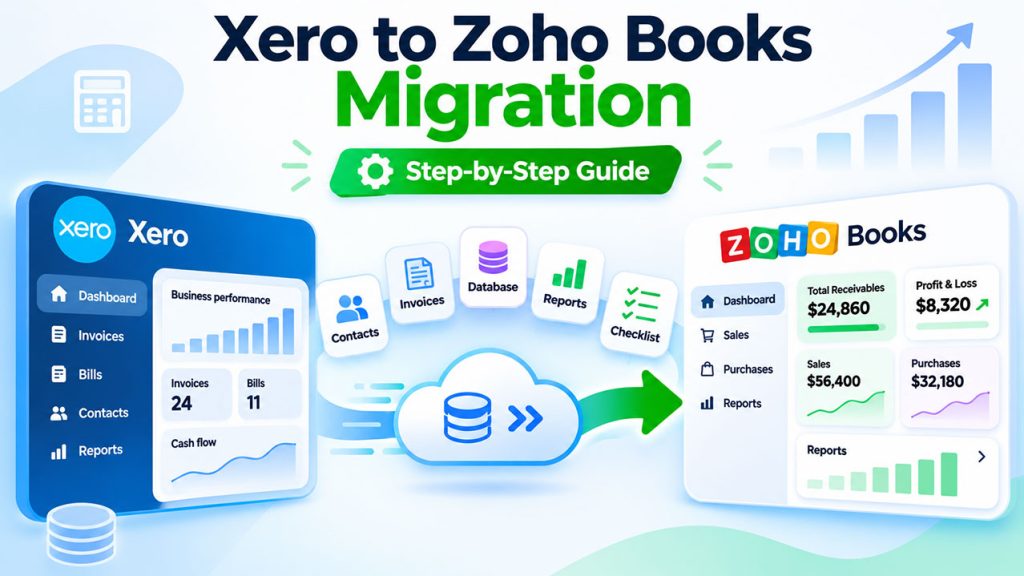
A Xero to Zoho Books migration moves your accounting software data, including your chart of accounts, contacts, items, open invoices and bills, and your opening balances, from Xero into a new Zoho Books organization. It then checks that both systems report the same numbers on the day you switch.
Most small and mid-size businesses move in phases over a few weeks. The work that decides whether it goes smoothly happens before any data moves: choosing the switch date, deciding how much history to bring, and mapping the places where Xero and Zoho Books store information differently. Proper planning at this stage is what prevents data loss later and makes a successful migration likely.
It draws on ABR’s own experience with SFIR Consulting, the accounting firm that runs our accountant-led Zoho Books migration service. This guide covers those decisions, a step-by-step Xero to Zoho Books migration process, the Xero features that need special handling, and the final review that proves the move worked.
Key Benefits of Moving from Xero to Zoho Books
Xero is a capable accounting system, and many businesses run on it for years. The reasons growing businesses migrate from Xero to Zoho are usually about what sits around the accounting software rather than the ledger itself. The key benefits:
- One platform for the business. Zoho Books connects natively with Zoho CRM, Zoho Inventory, Zoho Expense, Zoho Projects and the rest of Zoho One, so sales, operations and finance share the same customer and transaction data.
- Cost as you grow. Zoho Books plans include multiple users, and businesses that already pay for other Zoho apps can often cover accounting inside a Zoho One subscription, which can be more cost effective than separate tools. For growing businesses, our Zoho Books pricing guide breaks down the plans.
- Built-in workflow and approvals. Zoho Books includes workflow rules, approvals and custom fields for financial processes that often need add-ons elsewhere.
- Project tracking and time billing. Projects, timesheets and billing sit inside the same financial management tool.
- Region-aware tax. Zoho Books sets up sales tax, VAT or GST for the country your organization is registered in.
If you are still deciding between the two systems, our Xero vs Zoho Books comparison covers features and pricing side by side. This guide assumes the decision is made and focuses on how to move.
Plan the Xero to Zoho Books Migration Around Your Business Requirements
Pick a switch date
The switch date is the day Zoho Books becomes your new system of record. Choose the first day of a reporting period, ideally the start of your financial year or at least the start of a month.
Before you move, close the last period in your existing accounting system and set a Xero lock date at the end of it, so nobody can change transactions behind your starting balances. Your go-live date and your Zoho Books start date are not always the same. For an opening position move, the start date is the go-live day and the balances are Xero’s closing figures for the day before. If you also bring history, the start date moves back to the beginning of that history so nothing is counted twice (see step 6). Have your accountant confirm the dates and the resulting balances before going live.
Decide the scope of the data migration
There are three common levels:
| Level | What moves | Best for |
|---|---|---|
| Opening position | Chart of accounts, contacts, items, opening balances, open invoices and open bills | A clean start at a year or month boundary, with Xero kept for older reports |
| Recent history | The opening position plus the current financial year’s transactions | Complete year-to-date reporting in Zoho Books |
| Full history | Several years of invoices, bills, payments, credit notes and journals | Businesses that want every report and comparison in one system |
In a Xero to Zoho Books project, more history means more data migration work: more mapping, more cleaning and more validation. Match the level to your real business needs, such as audit requirements, lender reporting and how often your team looks at older years.
List what must be rebuilt
Some things in Xero do not move as data and are easier to set up fresh in Zoho Books: bank rules, invoice templates and branding, repeating invoice schedules, user permissions and user roles.
The same applies to third party integrations, such as payment gateways and apps connected through the Xero marketplace. Write the list down early so nothing is forgotten on go-live day.
Xero Export Checklist
Export these reports and lists from Xero as of the switch date and keep them together. They are your source files and the targets you will check Zoho Books against. Most lists export from their own screen in Xero (for example Accounting, then Chart of accounts, then Export, or Contacts, then Export), and reports export from the Reports area. Xero’s own help article on exporting data out of Xero lists every export option.
| Export from Xero | Used for |
|---|---|
| Trial Balance (as of the switch date) | Starting balances and the final check |
| Balance Sheet and Profit and Loss | Checking retained earnings and year-to-date figures |
| Chart of accounts (CSV export) | Mapping account codes and types |
| Contacts (CSV export) | Importing customers and suppliers |
| Items (CSV export) | Importing items and stock |
| Aged Receivables Detail and Aged Payables Detail | Open invoices and bills, document by document |
| Tracking categories and their options | Creating reporting tags in Zoho Books |
| Sales tax, GST or VAT report for the last period | Tax payable at cutover |
| Bank statements and bank reconciliation reports | Bank balances and the starting point for reconciliation |
| Manual journals list (if moving history) | Accruals, depreciation and corrections |
| Account Transactions or General Ledger (if moving history) | Historical movement by account |
| Fixed asset register (if you use Xero fixed assets) | Cost, accumulated depreciation and net book value |
How the Two Accounting Systems Store Data Differently
An accurate migration depends on mapping the places where Xero and Zoho Books work differently. These are the key details to settle before transferring data, because they decide how your financial data looks on the other side.
Tracking categories become reporting tags
Xero uses tracking categories, for example department or location, to segment reports. Zoho Books uses reporting tags for the same job. Create the tags first, then map each tracking option to a tag value:
| Xero | Zoho Books |
|---|---|
| Tracking category: Department | Reporting tag: Department |
| Option: Sales | Tag option: Sales |
| Option: Marketing | Tag option: Marketing |
| Option: Operations | Tag option: Operations |
Reporting tags do the same job, but reports and imports do not behave identically, so test one tagged report against Xero before importing history. Reporting tags are not included in every Zoho Books plan, so check your plan first.
Taxes are set up by region
In Xero you choose tax rates from a list. Zoho Books ties taxes to the framework of your organization’s country, so configure sales tax, VAT or GST in Zoho Books before importing any invoices.
Account codes and types need mapping
Each Xero account code and type needs a corresponding account and account type in Zoho Books. This is the right time to simplify a chart of accounts that has grown untidy.
Manual journals need their own import
Entries posted in Xero for accruals, depreciation or corrections need their own upload, or a single opening journal if you only bring the opening position.
Inventory can move to Zoho Books or Zoho Inventory
Xero tracked inventory items can move to items in Zoho Books, or to Zoho Inventory if you need warehouses, purchase orders and multi-channel selling.
Special Cases to Plan For
Foreign currency balances
Open invoices and bills in other currencies should come over in their original currency with the exchange rate used in Xero, and bank accounts in foreign currencies need their own balances. Set up the currencies and rates in Zoho Books first, then check unrealized gains or losses at cutover with your accountant.
Fixed assets and depreciation
If you use Xero’s fixed asset register, bring over each asset’s cost and accumulated depreciation, or its net book value, so the balance sheet still matches. Use Zoho Books’ fixed asset feature where your edition includes it; otherwise keep the register and post depreciation by journal.
Credits, prepayments and overpayments
Unapplied customer credits, prepayments and overpayments in Xero are part of what customers and suppliers owe or are owed. Bring them over against the right contact as open credits, so they can still be applied after go-live.
Tax history
Past sales tax, GST or VAT returns stay in Xero. Export the filed returns and tax reports with your other financial records, and make sure the first period you file from Zoho Books starts exactly at cutover.
Inventory valuation
The stock asset value in Zoho Books must equal Xero’s at cutover. Quantities and unit costs should come from the same Xero report as the balance sheet figure, and the valuation method in Zoho Books should be confirmed with your accountant before importing stock.
The Xero to Zoho Books Migration Process, Step by Step
Step 1: Data assessment and clean-up in Xero
Run a trial balance, balance sheet, profit and loss, and aged receivables and payables reports in Xero as of the switch date and save them. These are the targets your Zoho Books account must match, and the baseline for the whole Zoho Books migration process.
Then clean the source: archive unused accounts and contacts, merge duplicate customers and suppliers, void old draft invoices, and reconcile bank transactions in every bank account up to the switch date. Any error left in Xero will be copied into the new accounting system, so this data assessment is the most valuable hour of the entire migration process.
Step 2: Zoho Books setup
Create the organization and configure the base currency, fiscal year, taxes, reporting tags, invoice numbering and users. Our Zoho Books setup guide walks through these settings.
Getting them right before you bring in any data avoids rework later and gives the rest of the Xero to Zoho Books move a smooth transition.
Step 3: Rebuild the chart of accounts
Export the chart of accounts from Xero, map each account to a Zoho Books account type, and import it. Merge accounts nobody uses and rename unclear ones so your future financial reporting is easier to read.
Step 4: Export data from Xero and import contacts and items
Export contacts and items from Xero as CSV files, check the field mapping, and import them into Zoho Books.
Spot-check a sample of customers and vendors for addresses, payment terms, currency and tax treatment before moving on. Data accuracy at this stage saves hours later.
Step 5: Enter opening balances and open transactions
Enter the balance of every asset, liability and equity account on the opening balance date, using the trial balance from step 1. Accounts receivable and accounts payable are the exception: their totals come from the customer and vendor amounts you bring in below, not from a separate lump-sum entry, so they are never entered twice.
Customer and vendor balances can come in two ways, and each amount must come in only once:
- Invoice by invoice (recommended). Import each open invoice and bill with its original date and due date, dated before the opening balance date, so aged reports stay accurate and payments can be applied to the real documents. Zoho Books then uses its Sync option in Opening Balances to adjust balances for transactions dated before that date.
- One total per contact. Enter a single outstanding balance per customer and vendor. It is faster, but you lose invoice-level detail.
Zoho Books treats a contact’s outstanding opening balance as the amount owed excluding invoices and bills recorded in Zoho Books, so importing the open invoices and also entering the same amount as a contact balance doubles receivables or payables. Zoho explains this on its opening balances help page.
Example. Xero shows $12,000 in accounts receivable at cutover, made up of two unpaid customer invoices:
| Xero source | Amount |
|---|---|
| Unpaid customer invoice A | $7,000 |
| Unpaid customer invoice B | $5,000 |
| Total accounts receivable | $12,000 |
| Required Zoho Books receivable total | $12,000 |
Import both invoices and Zoho Books shows $12,000, invoice by invoice. If the same $12,000 were also entered as an opening balance, receivables would show $24,000. Payables work the same way with unpaid bills.
Customer and vendor balances in Zoho Books should now equal the aged reports you saved in step 1, to the cent.
Step 6: Import history and journals (if history is in scope)
How much history you import decides the start date you use in Zoho Books. The rule that prevents double counting: the balances you enter must be the Xero closing balances of the day before the first transaction you bring in, never a later date.
| Scope | Start date in Zoho Books | Balances you enter | Transactions you import |
|---|---|---|---|
| Opening position | Your go-live date, for example July 1, 2027, with Xero locked at June 30 | Xero closing balances at June 30, 2027 | Only invoices and bills still open at June 30, handled with Sync as in step 5 |
| Recent history | The first day of the financial year, for example January 1, 2027 | Xero closing balances at December 31, 2026 | Every 2027 transaction up to go-live, plus invoices and bills still open at December 31, 2026 |
| Full history | The first day of the oldest year you move | Closing balances at the end of the previous year | Every transaction from that date forward |
The common mistake is entering go-live balances and also importing the transactions behind them, which counts that history twice. Run the data transfer in order and by type: invoices, bills, payments and credit notes, then journals, one period at a time. A batch-by-batch data transfer is easier to check and roll back. After importing anything dated before the start date, use the Sync option on the Opening Balances page so Zoho Books recalculates, then compare each month’s trial balance with Xero before moving on.
Step 7: Final review for accurate data
Compare Zoho Books with the Xero reports from step 1:
- The trial balance matches account by account as of the switch date
- The balance sheet and profit and loss match for every period you migrated
- Aged receivables and payables match by contact
- Each bank account balance agrees with the statement, and reconciliation in Zoho Books starts from a reconciled balance
| Check (at cutover) | Xero | Zoho Books | Difference | Signed off by |
|---|---|---|---|---|
| Trial balance, total debits and credits | ||||
| Aged receivables total | ||||
| Aged payables total | ||||
| Each bank and card account | ||||
| Sales tax, GST or VAT payable | ||||
| Stock value (if tracked) | ||||
| Retained earnings |
Totals alone are not enough: open invoices and bills should also match by customer, vendor, document and currency, and every report you compare must use the same date and the same accounting basis (cash or accrual).
Every difference between Xero and Zoho Books must be investigated before the migration is approved. Check for missing or duplicate transactions, incorrect account mapping, tax treatment, exchange rates and starting balance errors, and correct each error at its source. Post an adjusting journal entry only when the accounting treatment justifies it and a qualified accountant has approved it. Record the results on the sign-off sheet and get sign-off before going live. Accurate financial records on day one make the rest of the year easier.
Step 8: Go live
Connect bank feeds, payment gateways and any apps you rely on, recreate bank rules and repeating invoices, and give your team short training in the new accounting software on daily tasks such as invoicing, bill entry and reconciliation.
Keep read-only access to Xero for at least one full reporting cycle, and consider running both systems in parallel for one month if your volume is high. That is the point where the migration is complete and the migration process can be signed off.
How Long Does a Xero to Zoho Books Migration Take?
The timeline of a Xero to Zoho Books migration depends less on the software and more on your data. Four things drive it: how much history you move, how many bank accounts and currencies you use, how clean the Xero file is, and whether stock is involved.
An opening position move for a small business with one currency and a tidy file can be completed in a couple of weeks of elapsed time. A full history move with tracking categories, several currencies and stock takes longer, mostly because each period has to be validated. In any accounting software migration, most of the time goes into checking, not loading data.
Whatever the size, plan time for three things that are easy to underestimate: cleaning the Xero data before export, the last check of balances, and team training in the first weeks after go-live. Before you close Xero, download the key reports and CSV exports as a permanent archive of your financial records, so no historical data is lost even after the Xero subscription ends.
You are ready to start when you have chosen a switch date, reconciled every bank account in Xero, listed the apps that need reconnecting, and named the person who will sign off the final balances.
How Much Does a Xero to Zoho Books Migration Cost?
There is no single price, because the work depends on your data. A professional quote is usually driven by transaction volume, how many years of history you move, the number of bank and card accounts, multi-currency, inventory, tracking categories, the apps and bank feeds that need rebuilding, and how much reconciliation is required. A balances-only move from a tidy file costs far less than a full history move with several currencies. An assessment of your Xero file is the fastest way to get a firm number.
Canadian Businesses Moving from Xero
Xero is popular with Canadian small businesses, so many Xero to Zoho Books moves happen in Canada. Set up your GST/HST registration number and the GST/HST and provincial taxes (PST or QST) you are registered for before loading any invoices, carry over the GST/HST balance on the switch day, and pick a switch date at the end of a filing period so one return is not split across two systems.
Zoho’s own case study on Armour Cybersecurity, a Toronto company that moved to Zoho One on Lior Izik’s recommendation, describes a two-person finance team running GST/HST reporting, multi-currency billing and over 200 recurring invoices from Zoho Books.
From Experience: What We See in Xero Moves
In a 2026 conversation on ABR’s channel, Simon Fedorovsky, CEO and co-founder of SFIR Consulting, and Lior Izik compare Xero and Zoho Books for growing companies. Simon notes that Xero takes more work to set up, and that businesses with several warehouses or location-based user needs often add a dedicated stock app. Lior explains that ABR’s own recurring-revenue model depends on the way Zoho Books connects to Zoho CRM and the other Zoho apps.
In an earlier ABR webinar on accounting system transitions, Simon explains why most North American moves use a balance-forward transfer at a year or quarter end, why four to six weeks is typical, and why a professional accountant should be involved, not only a developer. ABR made a similar move itself, from QuickBooks to Zoho Books, with SFIR completing it; that story is in our QuickBooks migration guide.
Common Xero to Zoho Books Migration Mistakes
- Switching mid-period, which splits a month or quarter across two systems
- Importing before taxes and reporting tags exist in Zoho Books
- Forgetting to set a lock date in Xero, so opening balances change after the move
- Skipping bank reconciliation before the switch
- Assuming bank rules, templates and integrations will move with the data
- Turning off Xero before the first month-end close in Zoho Books
Reporting After the Move: Better Data for Business Decisions
Once your books move from Xero to Zoho Books, the payoff comes from connecting them to your other business processes. Linking Zoho CRM gives sales and finance the same view of quotes, invoices and payments; see our guide to the Zoho Books and Zoho CRM integration.
Zoho Analytics can combine sales, finance and operations data in one dashboard, which gives owners deeper insights into financial data and financial operations, and better information for business decisions, than accounting reports alone.
Should You Migrate to Zoho Books Yourself or Use a Partner?
Migrating accounting software on your own works best for a business with a tidy Xero file, a simple chart of accounts and an opening position approach, especially with Zoho’s free migration consultation and webinars listed on its migration page.
A partner is worth it when you want recent or full history, use tracking categories heavily, have multi-currency or stock, or simply cannot spare the time to validate every balance. An accounting migration done once, properly, is cheaper than fixing one done twice, and a successful migration is measured by balances that match.
ABR’s Zoho Books migration service is run with SFIR Consulting and led by a professional accountant. It follows a phased path: assess, master data, system design, then balances and go-live, typically in four to six weeks from kickoff, with support after launch. Coming from QuickBooks instead? See our QuickBooks to Zoho Books migration guide, and for everything else on the platform, browse our Zoho Books guides.
Get a Xero to Zoho Books Migration Assessment
Find out what Xero data can be transferred, how your tracking categories and balances will be handled, and what your migration would involve.
Frequently Asked Questions
Is Zoho Books better than Xero?
It depends on what else you run. Both are solid cloud accounting software for small and mid-size businesses. Zoho Books is usually the stronger choice if you use or plan to use Zoho CRM, Zoho Inventory or Zoho One, because the apps share data natively and plans include multiple users. Xero has a larger app marketplace and more outside accountants who know it. Our Xero vs Zoho Books comparison covers the details.
How do I migrate to Zoho Books?
Choose a switch date at the start of a period, decide how much history to move, and clean your old data. Then set up Zoho Books (taxes, reporting tags, users), import the chart of accounts, contacts and items, enter opening balances and open transactions, and confirm that the trial balance and aged reports match before going live. The same order works when moving from other accounting software, such as QuickBooks.
What are the downsides of Zoho Books?
Zoho Books has a smaller third-party app marketplace than Xero, fewer outside accountants have used it, and some features, such as project profitability and advanced automation, need a higher plan. Zoho Payroll is only available in some countries, so many businesses keep a separate payroll provider.
How do I connect Zoho to Xero?
Zoho Books has no native Xero connection, because it is designed to replace Xero rather than run beside it. If you want to keep Xero for accounting and connect it to Zoho CRM, an integration tool such as Zoho Flow or Zapier can sync contacts and invoices between the two. For most Zoho users, moving the books into Zoho Books is simpler than maintaining a sync.
How long does a Xero to Zoho Books migration take?
Most migrations take four to six weeks from kickoff to go-live. An opening position move from a tidy Xero file can be quicker; full history with tracking categories, several currencies or inventory takes longer, mostly because each period has to be checked.
{"@context":"https://schema.org","@type":"FAQPage","mainEntity":[{"@type":"Question","name":"Is Zoho Books better than Xero?","acceptedAnswer":{"@type":"Answer","text":"It depends on what else you run. Both are solid cloud accounting software for small and mid-size businesses. Zoho Books is usually the stronger choice if you use or plan to use Zoho CRM, Zoho Inventory or Zoho One, because the apps share data natively and plans include multiple users. Xero has a larger app marketplace and more outside accountants who know it. Our Xero vs Zoho Books comparison covers the details."}},{"@type":"Question","name":"How do I migrate to Zoho Books?","acceptedAnswer":{"@type":"Answer","text":"Choose a switch date at the start of a period, decide how much history to move, and clean your old data. Then set up Zoho Books (taxes, reporting tags, users), import the chart of accounts, contacts and items, enter opening balances and open transactions, and confirm that the trial balance and aged reports match before going live. The same order works when moving from other accounting software, such as QuickBooks."}},{"@type":"Question","name":"What are the downsides of Zoho Books?","acceptedAnswer":{"@type":"Answer","text":"Zoho Books has a smaller third-party app marketplace than Xero, fewer outside accountants have used it, and some features, such as project profitability and advanced automation, need a higher plan. Zoho Payroll is only available in some countries, so many businesses keep a separate payroll provider."}},{"@type":"Question","name":"How do I connect Zoho to Xero?","acceptedAnswer":{"@type":"Answer","text":"Zoho Books has no native Xero connection, because it is designed to replace Xero rather than run beside it. If you want to keep Xero for accounting and connect it to Zoho CRM, an integration tool such as Zoho Flow or Zapier can sync contacts and invoices between the two. For most Zoho users, moving the books into Zoho Books is simpler than maintaining a sync."}},{"@type":"Question","name":"How long does a Xero to Zoho Books migration take?","acceptedAnswer":{"@type":"Answer","text":"Most migrations take four to six weeks from kickoff to go-live. An opening position move from a tidy Xero file can be quicker; full history with tracking categories, several currencies or inventory takes longer, mostly because each period has to be checked."}}]}