Moving from QuickBooks Desktop to Zoho Books replaces a company file on one computer with cloud accounting that your team and your accountant can use from any browser or phone.
The biggest changes are shared access, automatic bank feeds, no company file to back up or pass around, and a built-in Accountant role. The move itself comes down to three decisions: a migration date, opening balances or full history, and proof that the trial balance and aging match before you go live.
Amazing Business Results offers a Zoho Books migration service for businesses moving from QuickBooks, Xero and Sage. This article is for owners and managers in the US and Canada using QuickBooks Desktop, not QuickBooks Online.
What Changes When You Move from QuickBooks Desktop to Zoho Books
QuickBooks Desktop keeps your data in a company file on a computer or a shared network drive.
Zoho Books keeps it in the cloud. That one difference changes how everyone works with your books.
Shared access instead of passing a file around
In QuickBooks Desktop, if the machine is off or the file is locked, people wait.
In Zoho Books, anyone with permission logs in from a browser or the mobile app, and several people can enter invoices and bills at the same time. Remote staff connect the same way as people in the office.
Bank feeds instead of statement imports
Zoho Books connects to your bank and credit card accounts and brings transactions in regularly.
Bank rules categorize the repeat items, and your team reviews the rest, while imported bank transactions can be verified against bank statements during migration. Many Desktop users import statement files by hand instead.
No company file to back up or update
Desktop users manage their own backups and still need to create a local backup before migration from the File menu. Zoho runs Zoho Books on its own servers, so there is no local file to lose, no version mismatch between users and no ongoing file-maintenance burden or update to install.
Your accountant works in the same file
Instead of sending a portable company file or a backup to your accountant, you invite them with the Accountant role from Settings, Users & Roles.
They accept the email invitation and work inside your organization for tax filing, auditing and compliance. Our guide on finding a Zoho Books accountant explains what they should do each month.
QuickBooks Desktop vs Zoho Books: Key Differences
|
Area |
QuickBooks Desktop |
Zoho Books |
|---|---|---|
|
Access |
A company file on one computer or network drive; remote work needs remote desktop or similar tools |
Cloud-based; users log in from a browser or the mobile app |
|
Backups and updates |
You back up the company file and install updates |
Handled by Zoho on its servers |
|
Bank data |
Often imported from statement files |
Bank and card feeds with bank rules |
|
Accountant access |
Accountant needs a copy of the file or access to your computer |
Accountant is invited by email with the Accountant role |
|
Users and permissions |
Depends on your edition and network setup |
Roles control what each user can see and change |
Both systems produce the standard financial reports.
The difference is who can reach them and how. In Zoho Books, your accountant reviews reconciliations and the trial balance directly, without file transfers.
Choosing Your Migration Date
Your migration date is the day Zoho Books becomes your system of record.
Most businesses choose the first day of a fiscal year, tax year or quarter, so no reporting period is split across two systems. A mid-year date works, but it means running partial-year reports in both systems.
How long the project takes depends on the number of accounts, bank and card accounts, inventory, the state of your QuickBooks data and how much history you move. Planning, cleanup and checking take longer than the import itself.
Once your data is prepared, the import itself is usually the shortest part of the migration timeline; cleanup and checking take longer.
Opening Balances or Full History?
This is the biggest decision in a QuickBooks Desktop to Zoho Books move.
Opening balances only
Means bringing in a snapshot as of the migration date: the trial balance for every account, open invoices and bills, bank and card balances, and your contact and item lists.
It is faster, involves less cleanup of old data and is easier to reconcile. You keep QuickBooks Desktop for older reports.
Full or partial history
Means importing past invoices, bills, payments and journal entries for one or more years, so your historical data stays available inside Zoho Books.
If you use foreign customers, vendors or accounts, make sure multi-currency transactions and their exchange rates are preserved in the move; check that your Zoho Books plan includes multi-currency. It is worth the extra work when you need multi-year trends, job profitability across years or detailed transaction trails inside Zoho Books.
Whichever you choose, avoid counting the same amount twice. If you import open invoices and bills, do not also enter those amounts as part of the receivable and payable starting balances.
What Data Moves from QuickBooks Desktop
You export from QuickBooks Desktop by list and by report, then import into Zoho Books in a fixed order. Master data comes first:
-
The chart of accounts, mapped to Zoho Books account types
-
Customers and vendors
-
Products, services and other items
-
Tax rates and settings
After that come open invoices, open bills, and bank and card balances as of the migration date, followed by any history you chose to move.
Attachments do not transfer with a standard import, and payroll is usually brought in as summary journal entries rather than line by line. Not every custom field in QuickBooks Desktop has a direct match in Zoho Books, so plan how to handle them.
If you use other Zoho apps, decide early how they will connect through Zoho Books integration, since Zoho Books connects directly with Zoho CRM and Zoho Inventory, so you import each list only once.
How to Move from QuickBooks Desktop to Zoho Books
This is an overview of how businesses migrate accounting data from QuickBooks Desktop to Zoho Books. Our QuickBooks to Zoho Books migration guide covers each step in detail.
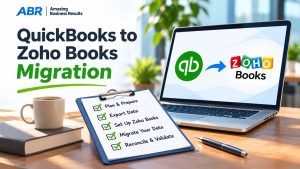
- Export from QuickBooks Desktop. Export the chart of accounts, customer and vendor lists, items, trial balance and aging reports for the migration date from QuickBooks Desktop (QB Desktop), and save them as your baseline. Some teams also create a backup and export the baseline files they will use to validate the import.
- Clean and map the data. Remove unused accounts and duplicate contacts, standardize names and map QuickBooks account types and tax codes to Zoho Books.
- Set up tax. In the US, recreate sales tax rates and customer exemptions; Zoho Books can also calculate US sales tax automatically, as our article on Zoho Books sales tax automation explains. In Canada, set up GST/HST registration and any provincial tax.
- Import in order. The migration process should follow an ordered process of loading lists first, then starting balances, then selected history into the new system.
- Connect bank feeds. Set the feed start date to the day after the migration date, so feed transactions do not overlap imported balances.
- Check and reconcile. Compare the trial balance account by account, the aging reports and the bank and card balances with your QuickBooks Desktop reports. Resolve any discrepancies before approval, and correct any exceptions manually if needed.
- Go live. Stop entering transactions in QuickBooks Desktop, set up recurring invoices and payment gateways, and train your team, then customize Zoho Books reports and workflows after go-live.
Common Mistakes When Moving from QuickBooks Desktop
Moving everything without cleanup
Some businesses also switch because they want the whole team and their accountant working in one cloud file.
Inactive accounts, old items and duplicate contacts make a messy Zoho Books setup. Trim the data before you export.
Opening balances that do not match
A small difference in the trial balance or aging carries forward into every close and tax filing. Find and fix it before daily work starts.
Bank feed overlap
If the feed start day is too early, transactions already counted in your balances come in again.
Starting live work too early
Entering real invoices before the import is balanced mixes test and live data.
Rushing tax setup
Missing sales tax rates, exemptions, 1099 vendor flags or GST/HST settings cause filing problems later.
In the US, also bring in the 1099 payments already made this year. Compare current plans on each vendor’s own pricing page before you decide.
Why Many QuickBooks Desktop Users Are Moving Now
Intuit changed its QuickBooks Desktop line in 2024. According to Intuit’s announcement, after September 30, 2024 it stopped selling new subscriptions of QuickBooks Desktop Pro Plus, Premier Plus, Mac Plus and Desktop Enhanced Payroll to U.S. customers. Existing subscribers can keep renewing, and QuickBooks Desktop Enterprise was not affected.
For many small businesses, that change is the trigger to compare cloud options. Zoho Books is one of them: it runs in the browser, includes strong financial reporting, and integrates directly with other Zoho apps such as Zoho CRM and Zoho Inventory.
Your QuickBooks to Zoho Books Migration Timeline
A realistic migration timeline has four parts: planning and data cleanup, setting up Zoho Books, importing and checking the data, and going live.
The import itself is usually short. Cleanup and checking take most of the time, and they depend on how many accounts, items and years of history you move.
Plan the dates around your business: avoid month-end close, tax filing deadlines and your busiest sales period. Share the timeline with your accountant, so they can review the starting balances before the switch.
How to Migrate from QB Desktop Safely
To migrate from QuickBooks without surprises, keep the old company file untouched as a reference, export your data from the same migration day, and keep a written list of every account mapping decision. Do one test import with a small batch before the full data migration, and compare the results with QuickBooks before you continue.
If you also connect QuickBooks Desktop to other software, such as payroll, a website shop or a payment service, list those integrations first. Each one needs a replacement or a new connection to Zoho Books, and some payroll services keep running outside Zoho Books with summary entries posted to the books.
Features to set up in Zoho Books after the move
Once the data is in, set up the Zoho Books features your team will use every day: bank connections and bank rules, recurring invoices, payment reminders, a client portal where customers can view and pay invoices, and the reports your business reviews each month. These are the parts that make the new system feel easier than the old file.
Avoiding hidden fees and surprises
Before you sign with any migration provider, ask for a written scope that lists what is included: which data moves, how much history, the checks they will run and the support after go-live.
That is the best protection against hidden fees. Compare the cost of the move against the time your own team would spend on it.
What Zoho Books Costs
Zoho Books has a Free plan for small businesses, so very small companies can start without a subscription. After the migration, link your bank accounts in Zoho Books so transactions start coming in from the cutoff day.
As listed on Zoho’s Zoho Books US pricing page in November 2026, Zoho Books is priced per organization, not per user: a Free plan for small businesses under Zoho’s revenue limit, then Standard, Professional, Premium, Elite and Ultimate at $15, $40, $60, $120 and $240 per organization per month billed annually, or $20, $50, $70, $150 and $275 billed monthly. Check Zoho’s page for current prices.
QuickBooks to Zoho Books: What Stays the Same
Many things stay familiar when you move from Intuit’s QuickBooks Desktop to Zoho Books: strong financial reporting, invoices and bills, bank reconciliation, sales tax and a chart of accounts.
What changes is how you work with them. Zoho Books also connects directly with other Zoho apps, such as Zoho CRM and Zoho Inventory, so a QuickBooks to Zoho Books migration can be the first step toward connected business software.
Plan support for the first month-end close after the Zoho Books migration, when most questions come up. A complete data migration plan, agreed with your accountant, is what makes the move feel straightforward.
How ABR Helps with QuickBooks Desktop to Zoho Books Moves
Amazing Business Results has worked with Zoho since 2013, has been a Zoho Premium Partner for 9 years and has completed 2,000+ Zoho projects, with 190+ five-star reviews on Zoho and Google.
ABR also helps businesses that migrate from QuickBooks Online, not only QuickBooks Desktop. We set up Zoho Books and handle the migration from QuickBooks, Xero or Sage for bookkeeping teams and other businesses that need complete migration help, not just software setup.
ABR is not an accounting firm, so decisions such as account structure and tax elections stay with you and your accountant.
If you are comparing providers, our guide on choosing a Zoho Books implementation partner lists the questions to ask, or see how our Zoho Books migration service works. Accounting decisions remain with the client and their accountant.
Frequently Asked Questions
How is moving from QuickBooks Desktop different from moving from QuickBooks Online?
The decisions are the same: a migration day, starting balances or history, and verification. The difference is the export.
Files from QuickBooks Desktop Enterprise often need more complex cleanup and mapping because of advanced inventory, multiple locations, custom fields, or higher transaction volume.
QuickBooks Desktop data usually comes out as several list and report files, and it often needs more cleanup and mapping before it can be imported into Zoho Books. Desktop files also often need more manual cleanup as part of the migration process before import.
Can I keep using QuickBooks Desktop after moving to Zoho Books?
Most businesses keep the Desktop file for historical data and reporting purposes, but stop entering new transactions once Zoho Books goes live because anything added later must be entered manually in Zoho Books as well. Ask your accountant how long to keep access, based on your record-keeping requirements.
What happens to my credit card transactions?
You bring over the outstanding card balances, plus any history you chose to move, then let the card feed bring in new transactions from the day after the migration day. Setting that start day carefully avoids duplicates.
Do open purchase orders and estimates transfer?
Open purchase orders and estimates are often included when they affect current stock, jobs or sales, so your migration plan should be a complete plan for outstanding operational records and review them before the move.
Closed ones usually stay in QuickBooks Desktop. Decide this in your migration plan so nothing outstanding is lost.
How do I know my opening balances are correct?
Compare the Zoho Books trial balance, receivables and payables aging, and bank and card balances with your QuickBooks Desktop reports for the migration day, including imported bank transactions where relevant. Fix any difference before daily work starts, and ask your accountant to review and sign off.
If a migration provider retains backup or migration files for follow-up review, they should permanently delete that data after the retention window. If reconciliations do not match, investigate discrepancies against the original reports and related bank statements before sign-off.
{"@context":"https://schema.org","@type":"FAQPage","mainEntity":[{"@type":"Question","name":"How is moving from QuickBooks Desktop different from moving from QuickBooks Online?","acceptedAnswer":{"@type":"Answer","text":"The decisions are the same: a migration day, starting balances or history, and verification. The difference is the export. Files from QuickBooks Desktop Enterprise often need more complex cleanup and mapping because of advanced inventory, multiple locations, custom fields, or higher transaction volume. QuickBooks Desktop data usually comes out as several list and report files, and it often needs more cleanup and mapping before it can be imported into Zoho Books. Desktop files also often need more manual cleanup as part of the migration process before import."}},{"@type":"Question","name":"Can I keep using QuickBooks Desktop after moving to Zoho Books?","acceptedAnswer":{"@type":"Answer","text":"Most businesses keep the Desktop file for historical data and reporting purposes, but stop entering new transactions once Zoho Books goes live because anything added later must be entered manually in Zoho Books as well. Ask your accountant how long to keep access, based on your record-keeping requirements."}},{"@type":"Question","name":"What happens to my credit card transactions?","acceptedAnswer":{"@type":"Answer","text":"You bring over the outstanding card balances, plus any history you chose to move, then let the card feed bring in new transactions from the day after the migration day. Setting that start day carefully avoids duplicates."}},{"@type":"Question","name":"Do open purchase orders and estimates transfer?","acceptedAnswer":{"@type":"Answer","text":"Open purchase orders and estimates are often included when they affect current stock, jobs or sales, so your migration plan should be a complete plan for outstanding operational records and review them before the move. Closed ones usually stay in QuickBooks Desktop. Decide this in your migration plan so nothing outstanding is lost."}},{"@type":"Question","name":"How do I know my opening balances are correct?","acceptedAnswer":{"@type":"Answer","text":"Compare the Zoho Books trial balance, receivables and payables aging, and bank and card balances with your QuickBooks Desktop reports for the migration day, including imported bank transactions where relevant. Fix any difference before daily work starts, and ask your accountant to review and sign off. If a migration provider retains backup or migration files for follow-up review, they should permanently delete that data after the retention window. If reconciliations do not match, investigate discrepancies against the original reports and related bank statements before sign-off."}}]}