Clients want to know where their project stands, and answering that by email eats hours every week. The Zoho Projects client portal gives each client a login to a branded view of their own projects, so they can check progress, download files, comment on tasks and approve deliverables whenever they like. This guide covers how it works, how to set it up so clients see the right things and nothing more, and the habits that make it replace status emails rather than add to them. It belongs to the Zoho Projects hub.
How the Client Portal Works
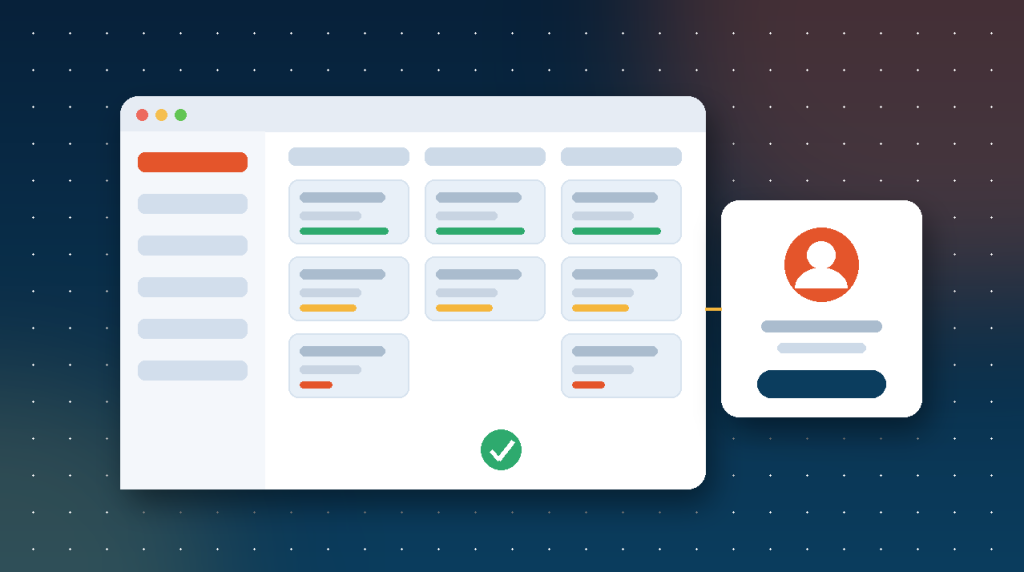
In Zoho Projects, clients are added as client users belonging to a client company. A client user signs in to the same Zoho Projects address as your team, but sees only the projects they have been added to, and within those only the modules and items you allow. Your internal discussions, private tasks and other clients’ work stay hidden.
| Element | What it means |
|---|---|
| Client company | The client organisation, holding its client users and linked projects |
| Client user | A person at the client who can sign in and see their projects |
| Client profile | The permission set that decides which modules and actions client users get |
| Portal name and branding | Your company name, logo and portal address, so clients see your brand |
Setting It Up
- Set the portal name, logo and colours in the organisation settings, so the client sees your brand from the first login.
- Create the client company and link it to the project.
- Review the client profile: decide whether clients can view tasks, comment, upload documents, see milestones, timesheets or invoices.
- Invite the client users from the project’s users screen, choosing the client company and profile.
- Mark internal tasks, task lists and discussions as internal or restrict them, so only client-facing items are visible.
- Send the invitation with a short note on what they will find and how to use it.
Check the client view yourself before the invitation goes out: log in as a test client user, or use the view-as option where available, and click through every module.
What to Share and What to Keep Internal
| Share with the client | Keep internal |
|---|---|
| Milestones and their due dates | Internal estimates and margin notes |
| Tasks waiting on the client | Team-only task lists and bug triage |
| Deliverables and final files | Working drafts and internal reviews |
| Client-facing discussions | Internal chat about the client |
| Approved timesheets, if you bill hourly | Unapproved time and rates |
The rule of thumb: share what the client needs to act on or approve, plus enough progress to reassure them. Sharing everything overwhelms clients and invites questions about work in progress.
Approvals and Client Tasks
The portal works best when clients have things to do in it. Assign the client the tasks that genuinely sit with them, such as sending content, approving a design or signing off a phase, with due dates, so their part of the timeline is visible to both sides. Approvals can be built into task workflows or handled with a client-facing task per deliverable. When a client’s task is late, the portal makes it visible without an awkward email.
Billing and Time
- Show approved timesheets to clients on hourly engagements, so invoices hold no surprises.
- Connect Zoho Projects to Zoho Books or Zoho Invoice to bill from logged hours or milestones.
- For fixed-fee work, share milestones and keep timesheets internal.
Habits That Replace Status Emails
- Update task status before the weekly call, so the portal is the source of truth.
- Post a short weekly update in a client-facing discussion instead of an email.
- Put every deliverable in the project’s documents, never as an email attachment.
- When a client emails a question, answer it in the portal and point them there next time.
- Review the client view monthly as the project changes.
Client Portal for Different Project Types
| Project type | What to show clients |
|---|---|
| Website or creative project | Milestones, design tasks awaiting approval, final files |
| Implementation or IT project | Phase milestones, client tasks such as data or access, issue status |
| Retainer or ongoing service | Monthly task lists, timesheets if hourly, a running discussion |
| Construction or field project | Milestones, site documents, change requests |
Security and Access
Client users only see what their profile and the project allow, so access control is mostly a matter of setup discipline. Use one client company per client organisation, remove client users when their role ends, avoid uploading internal-only documents into folders clients can open, and review the client profile whenever you add a module to a project. Two-factor authentication through Zoho accounts protects client logins as well as your team’s.
Measuring Whether It Works
- Status emails per project per week, before and after the portal.
- Client tasks completed on time.
- Questions asked in the portal rather than by email.
- Client feedback at the end of each phase.
Common Mistakes
- Inviting clients before hiding internal task lists.
- One client profile for every client, whatever the engagement.
- Sharing timesheets on fixed-fee projects, which invites debate about hours.
- Keeping files in email, so the portal never becomes the place to look.
Who Uses It
Agencies, consultancies, IT providers and any business delivering projects for clients get the most from it. For agencies in particular, see Zoho Projects for client-facing agencies, and for the wider view of delivery after a sale, you closed the deal, now deliver.
Frequently Asked Questions
What is the Zoho Projects client portal?
A client-facing view of Zoho Projects where client users sign in to see their own projects, tasks, files and discussions, without seeing internal work or other clients.
How do I add a client to Zoho Projects?
Create a client company, link it to the project, and invite client users from the project’s users screen with a client profile that sets what they can see and do.
Can clients see internal tasks?
Not if you mark them internal or restrict them by profile; check the client view before inviting anyone.
Can I brand the client portal?
Yes, with your company name, logo and portal address in the organisation settings.
Can clients approve work in the portal?
Yes, through tasks assigned to the client or approval steps in task workflows.
Does the client portal cost extra?
Client users are part of Zoho Projects’ paid plans, with limits by plan; check Zoho’s current pricing page for your edition.
{"@context":"https://schema.org","@type":"FAQPage","mainEntity":[{"@type":"Question","name":"What is the Zoho Projects client portal?","acceptedAnswer":{"@type":"Answer","text":"A client-facing view of Zoho Projects where client users sign in to see their own projects, tasks, files and discussions, without seeing internal work or other clients."}},{"@type":"Question","name":"How do I add a client to Zoho Projects?","acceptedAnswer":{"@type":"Answer","text":"Create a client company, link it to the project, and invite client users from the project's users screen with a client profile that sets what they can see and do."}},{"@type":"Question","name":"Can clients see internal tasks?","acceptedAnswer":{"@type":"Answer","text":"Not if you mark them internal or restrict them by profile; check the client view before inviting anyone."}},{"@type":"Question","name":"Can I brand the client portal?","acceptedAnswer":{"@type":"Answer","text":"Yes, with your company name, logo and portal address in the organisation settings."}},{"@type":"Question","name":"Can clients approve work in the portal?","acceptedAnswer":{"@type":"Answer","text":"Yes, through tasks assigned to the client or approval steps in task workflows."}},{"@type":"Question","name":"Does the client portal cost extra?","acceptedAnswer":{"@type":"Answer","text":"Client users are part of Zoho Projects' paid plans, with limits by plan; check Zoho's current pricing page for your edition."}}]}